Menu 1: VMware Settings
Menu 2: VMware Shutdown Management
Independent of a standard shutdown via the VMware Settings, RCCMD offers the option of not only organizing virtual machines into shutdown groups, but also establishing a direct dependency between individual virtual machines in advance. RCCMD proceeds as follows:
Sequence 1: Custom Shutdown Group
The Custom Shutdown Group defines a first group of virtual machines for the initial shut down. Virtual machines can be added or changed in position relative to each other by using drag and drop. A placed virtual machine will be permanently removed from the list of ESXi hosts and displayed exclusively under the „Custom Shutdown Group“.
In case of a shutdown, RCCMD will exclusively contact all known servers as configured at „VMware Settings“ to search for this virtual machine name.
If the virtual machine cannot be found, configured time windows are meticulously tracked, but the virtual machine state is no longer taken into account.
Trigger, Duration (s) und Delay (s)
Virtual machines stored in the Custom Group can be shut down individually in relation to each other. Since the settings are not tied to the respective states of the virtual machine, RCCMD runs the shutdown with the specified order as configured, even if the virtual machine requires less or more time for the individual shutdown process.
Trigger: „after previous“* | Defines that the individual delay (s) is started restrictively only after the duration (s) of the previous machine has expired |
Trigger: with previous“* | Defines that the individual delay (s) starts simultaneously with the duration (s) of the preceding machine. |
| Duration (s) | Defines that the individual delay (s) starts at the same time as the duration (s) of the previous machine. |
| Delay (s) | Defines a time delay when the shutdown is sent to the respective virtual machine. The time delay takes effect relative to the trigger. |
| State | Shows the current operating state of the found virtual machine. Only active virtual machines are shut down. The operating state is for information only and does not affect the shutdown procedure. |
| Remove | Removes the virtual machine from the list and adds it back to the known ESXi host. The virtual machine is then automatically shut down using Shutdown Sequence 3: Default Group. |
*) The Duration (s) represents an administrator-defined value a virtual machine has been granted before RCCMD considers the shutdown is done and jumps to the next step:
If an administrator knows that an upstream management server with all routines needs around 300 seconds to shut down, but closes the network connections within 100 seconds, a downstream backup or database server does not necessarily have to wait for the full duration (s) of 300 seconds of the management server. In this case, an administrator may decide to use the triggers to define whether the individual delay (s) of a virtual machine starts at the same time as the shutdown of the previous machine, or explicitly only after it has expired.
Sequence 2: General Shutdown Group
This static shutdown group is started as soon as the delay (s) of the last entry of the custom group (sequence 1) has expired. All virtual machine names that are listed in the General shutdown group will be shut down at the same time without an individual shutdown timing: the default value of 90 seconds is applied for all virtual machines before the next shutdown group is called.
Sequence 3: Default Shutdown Group - No Category / General Shutdown Group
Each host configured at "VMware Settings" is queried in real time during the shutdown procedure for currently available VMs:
A virtual machine found that is not managed by a static shutdown group is dynamically recorded and shut down accordingly - including the virtual machines that were newly rolled out after configuring RCCMD or migrated to one of the hosts defined under VMware Settings at a later point in time.
This group is a dynamic system group and cannot be configured.
Sequence 4: Host based Shutdown Group
This is the last group to be shut down. The essential infrastructure servers such as DHCP, DNS, RADIUS, mail services, virtual telephone systems and the appliance are stored here. In this case, the shutdown does not take place via the VMware Shutdown Management, but is transferred to the VMware Settings with the shutdown duration for hosts, which shuts down the virtual machines stored here and then the physical hosts.
Quick configuration, extended shutdown scenario: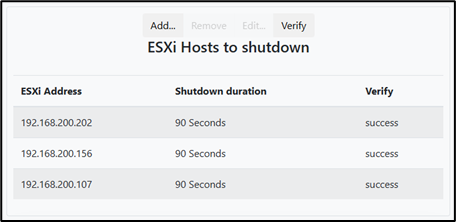
Step 1: Hosts Definition
In this configuration step, define the ESXi hosts that should be shut down by RCCMD. Add all hosts and confirm the access data and verify the communication.
Step 2: Virtual Machine Dependency Setup
In this configuration step, define the interdependencies and assign shutdown groups.
Open the "VMware Shutdown Management" menu:
All ESXi hosts specified under VMware Settings, including the virtual machines located on them, are displayed together with their respective operating status:
This virtual machine is OFF – System is secured in case of an ESXi host shutdown. | |
This virtual machine is paused, or hibernating for the moment. | |
This virtual machine is ON and therefore at risk in case of a power failure. | |
| The virtual machine is added to a static shutdown group, but RCCMD cannot find it (moved to other hosts or deleted by administrators). RCCMD will use the timing settings and configured triggers to jump to the next virtual machine in the list. |
Guest System: This icon represents a virtual machine with a custom content or function. | |
A virtual machine with this icon is the vCenter of the according cluster. | |
The RCCMD Appliance: RCCMD knows its own virtual machine name. The RCCMD Appliance is generally excluded from any configurable shutdown procedure. |
Note: Exception for vCenter and RCCMD Appliance
All virtual machines are treated equally - except the virtual machine RCCMD is running on as well as the vCenter, which can also appear as a virtual machine within an ESXi cluster. Depending on the configuration, RCCMD will handle both virtual machines separately to ensure structured shutdown management.
v.: 2025-08-26
Comments
0 comments
Please sign in to leave a comment.