This article contains the following:
Case 1: The stand-alone operating scenario without internal dependencies:
Case 2: Internal dependencies for virtual servers on a Hyper-V
Shutdown command sequence with RCCMD on a Hyper-V with 3 virtual machines
How to customize the Shutdown.bat in the RCCMD:
An Introduction to Hyper-V
HYPER-V is Microsoft's virtualization technology, which allows not only individual workstations but also entire server infrastructures to be operated within a virtual environment. The difference from VMware is that Hyper-V does not have a convenient vCenter, but is instead administered directly via PowerShell and scripts or script commands. This has its own special advantages and disadvantages.
Case 1: The stand-alone operating scenario without internal dependencies: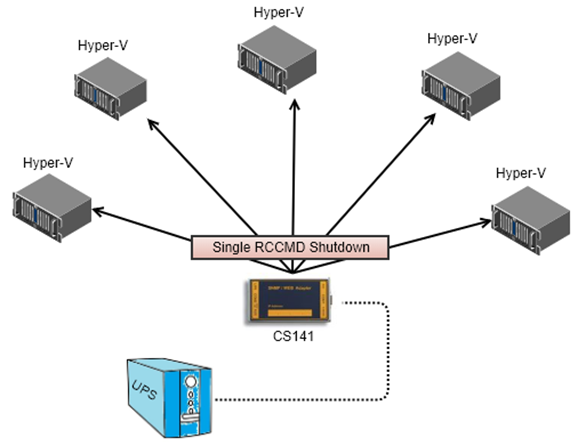
There are any number of Hyper-V servers that are not connected to each other. In theory, it would even be possible to shut down the entire Hyper-V environment with an RCCMD client and the appropriate scripts, but this is only recommended to a limited extent in this configuration, as the trust between the servers reacts very sensitively if you try to execute a script from one node to another.
It makes more sense here to install a separate RCCMD client on each Hyper-V node, which then executes the necessary scripts directly with local admin rights (the rules of the game change here in a failover cluster, but more on that later).
If you shut down a Hyper-V server locally in its standard configuration, the virtual machines are stopped, the respective operating state is saved and the main server is then shut down. After starting, the operating data is loaded again and the server continues to run. Whether stopping and saving works depends on what is running in the virtual machine:
- Memory dumps can become very large
It could happen that the available storage space on the main server is not enough to hold the operating data of all virtual machines.
- This is not possible due to the program.
Booking systems, rendering systems, programs with special shutdown routines, etc. There are many applications that need to be turned off and shut down cleanly in the event of a shutdown.
Initiate a clean shutdown
If RCCMD receives the instruction from a CS141 / BACS system, it gives the local computer the shutdown command, but has no influence on what happens to the machines when the host operating system starts the shutdown procedure!
If you do not have Windows PowerShell installed or have disabled it, you can transfer shutdown control to the Hyper-V Manager and set there what should happen when the server is shut down:
Save virtual machine state
In the event of a shutdown, a complete memory dump is created. Please check two things: Firstly, whether the server can provide enough memory, and secondly, whether the programs within the virtual machine generally support this function.
Turn off the virtual machine
The classic hard OFF on the virtual machine, depending on the operating system and usage, can lead to different problems.
Shut down guest operating system.
The operating system within the virtual machine is instructed to shut down itself.
Case 2: Internal dependencies for virtual servers on a Hyper-V
This is basically the logical extension of case 1 - what if several virtualized systems are running on a Hyper-V node that have a mutual dependency or require a special shutdown order?
Now the difference from VMware becomes apparent: Instead of a graphical administration menu as used in VMware, Hyper-V uses PowerShell to implement such configurations.
In this example, 3 virtual systems are now running:
If you were to shut down Hyper-V, all 3 operating systems would definitely shut down. Two shut down while Windows 7 “saves and exits”. For users, PowerShell makes this relatively easy:
With the command Get-VM you first get an overview of all currently running virtual machines:
The machines can then be shut down with the command Stop-VM [machine name] :
To implement individual shutdowns, RCCMD offers 3 commands with which you can implement a structured server shutdown:
- Shut down a Hyper-V VM: Name a VM to shut down.
- Wait some seconds: Define a time window until the next job.
- Shut down all Hyper-V VMs: Shut down all virtual machines.
- Shut down System: Shut down the server.
With the correct sequence and time windows, you can shut down all virtual machines in a structured manner and then turn off the server.
The only condition: Windows PowerShell must be installed and activated.
Hyper-V with cluster management (PowerShell is required)
The communication in Hyper-V is very structured so that RCCMD can be operated without any further problems:
The higher-level instance is always informed first and the release is waited for accordingly. In the case of a shutdown via RCCMD, this means that the operating system announces the shutdown in Hyper-V. This organizes the structured shutdown of virtual machines. The carrier system is then shut down.
If there is a Hyper-V cluster manager, Hyper-V first informs it, which communicates with other cluster managers and organizes the migration of virtual machines. Once all machines have been moved to another server, Hyper-V then saves the remaining virtual machines and shuts them down. Once this has happened, the carrier system is shut down normally.
Planned vs. unplanned failover – preparing for simultaneous shutdown on 2 hosts
It becomes more difficult if you want to shut down both nodes (or hosts) in the event of a power failure:
To do this, you need to understand how virtual machines migrate between two nodes:
With two nodes, there is access to the VM storage, communication between the cluster nodes and a witness server through which both nodes determine who holds the so-called “quorum”, i.e. who will provide the more current operating status.
In a failover cluster, a primary server is usually configured where the VM should run and a guest on which it may currently be running. In a failover cluster, the VHD file responsible for the virtual server is replicated and transferred to the registered guest and is regularly compared and updated with current operating data, with the executing node sending the data to its registered partners:
- In the event of a planned failover (e.g. a live migration or the shutdown of one of the two nodes), the cluster manager is given enough time to send its operating data and only then is the shutdown carried out
- In the event of an unplanned failover, the last available update is assumed, so some data loss may have occurred.
- If both nodes go “down” unplanned, then according to the quorum, the last saved current operating state that is available counts.
The problem lies hidden in the details:
The standard configuration of a FailOver cluster does not assume that both nodes will shut down in a planned manner. During a planned shutdown by the operating system, approximately 120 seconds are scheduled before the operating system shuts down in order to update the operating data and get the virtual machine running on another node. The catch is that with two nodes scheduled to shut down at the same time, a conflict of interest could inevitably arise: Node A will try to move all of its machines and operational data to Node B, and vice versa. This means that the machines may remain stuck in limbo and are then abruptly stalled by the shutdown of the node operating system. Depending on the size and complexity, there are different procedures:
Example: The very simple case
In the simple case, there are two nodes that form a fail-over cluster, and both nodes could host all virtual machines (or individual machines are excluded from the migration process). If you do not have PowerShell installed/activated, shut down the nodes sequentially: Node A transfers its data to Node B, hands over the virtual machines and then switches off. Afterwards, Node B will notice that the cluster has collapsed (Node A is already off or in the process of shutting down) and will not attempt to migrate the virtual machines at all. With the RCCMD command “Shut down all virtual machines” all virtual machines can be shut down and the server switched off.
However, the shutdown via PowerShell is more recommended here:
To implement individual shutdowns, RCCMD offers 3 commands with which you can implement a structured server shutdown:
- Shut down a Hyper-V VM: Designate a VM to shut down
- Wait some seconds*: Define a time window until the next job
- Shut down all Hyper-V VMs: Shut down all virtual machines
- Wait some seconds*: Time window for the virtual machines.
- RCCMD shut down relay: Send the shutdown to the 2nd node**
- Shutdown System: Shut down the server
*Define the time windows so that the virtual machines have enough time to shut down and turn off on their own. You specify whether the virtual machines are saved or shut down in the properties of the virtual machine.
**On the second server you only need the Shut down System job, as all virtual machines have already been shut down cleanly and only the server needs to be shut down.
Advanced: Create your own Hyper-V commands for shutting down virtual machines on multiple nodes and quorum
The following commands require the installation/activation of PowerShell:
PowerShell has established itself as a central component in the Microsoft environment and is indispensable for administrators and developers alike. Automating administrative tasks through scripts enables a more efficient and time-saving way of working. PowerShell 7 / Core expands the possibilities of script creation and execution with new features specifically tailored to server administration. Cross-platform availability and integration with other Microsoft products make PowerShell a universal tool for automating and optimizing IT processes.
The following versions are currently in circulation:
Windows Server 2012 R2: PowerShell 3.0 is preinstalled but not enabled by default.
Windows Server 2016: PowerShell 5.1 is installed and enabled by default.
Windows Server 2019: PowerShell 5.1 is installed and enabled by default.
Windows Server 2022: PowerShell 7.0 is installed and enabled by default.
A note:
Windows Server 2012 and earlier versions do not include PowerShell by default. However, you can manually install PowerShell on these systems.
The latest version of PowerShell can be manually installed at any time on any Windows system, regardless of the server version.
After you have installed PowerShell, you can use two special Hyper-V commands that RCCMD offers to manage virtual machines within a Hyper-V environment:
Shut down a specific Hyper-V VM
You can use this PowerShell command to shut down a specific virtual machine. The name of the virtual machine is specified in the input dialog.
There are two different use cases here:
1. Local Hyper-V
The local Hyper-V Manager will shut down and terminate exactly this one VM.
2. RCCMD is installed on the cluster manager
If the cluster manager is active, this command will be transmitted to the Hyper-V network, and the node on which the VM is currently running will execute the command.
If the virtual machine migrates to a node that is not part of this cluster, the machine will no longer be shut down, even if the cluster manager knows where the virtual machine is currently located.
Shut down all virtual machines
The difference from a virtual machine is that the Hyper-V Manager asks for a list of all virtual machines with the status “running” and then shuts them down using the “Stop-VM” command.
Here, too, there are two possible applications:
1. Local Hyper-V (Without Cluster Manager!)
In this case, all locally running virtual machines are shut down in a structured manner and the virtual machines are terminated properly.
2. On the cluster manager
The cluster manager requests all virtual machines that have the status “running”. With the Stop-VM command, the virtual machines in the cluster are shut down regularly and the VMs are terminated.
Tip: Hyper-V works context-related
These two commands allow a structured shutdown of all virtual machines on a Hyper-V server or an entire Hyper-V cluster. What is executed depends heavily on the respective context.
Shutdown command sequence with RCCMD on a Hyper-V with 3 virtual machines
On a Hyper-V single server
In this constellation, a separate RCCMD client is required on each Windows host. The shutdown is triggered locally and the virtual machines are to be shut down:
1. Shut down a Hyper-V VM
This would be, for example, the management server, which must be shut down before the database server. Enter the name of the virtual machine that you chose when creating it.
2. Wait a few seconds
In this example, 90 seconds were entered. So RCCMD will give the operating system 90 seconds before starting the next item in the list.
3. Shut down all Hyper-V VMs
RCCMD requests the Hyper-V Manager to list all virtual machines in the Running status and instructs the Hyper-V Manager to shut down the operating systems.
4. Wait a few seconds
Give the operating systems time to organize the shutdown and terminate the virtual machines in an orderly manner.
5. Shut down system
The Hyper-V PC shuts down and the server turns off. Please note that this command will hard shut down the virtual machines that are still running. Please plan a correspondingly large time window under point 5.
If you have a VM running that requires a special shutdown routine
As a preparatory measure, forward the RCCMD signal directly to the operating system of the corresponding virtual machine and delay the shutdown by an appropriate time window. In this case, you configure the individual shutdown within the RCCMD client to which you forwarded the shutdown.
Please note that an RCCMD client must be installed on the guest system for this function.
In this case, a guest system is first instructed to shut down before the local shutdown described above takes effect.
For a Hyper-V cluster with multiple nodes and cluster manager
If there are several nodes with a cluster manager, it is important where the shutdown commands come from: Simply shutting down nodes in a cluster locally is not recommended because this can lead to data loss and damage to the virtual machines running on the node and the operating system. The problem increases with the number of nodes that are simply shut down.
In this case it is recommended to use the cluster manager, which - unlike VMware, for example - runs as a service on every node: You can therefore initiate a structured cluster shutdown for every node that is a member.
What is important is not which node the cluster manager receives its commands from, but rather the order in which the commands are entered:
1. Shut down all Hyper-V VMs
Get-VM | Where-Object {$_.State -eq "Running"} |Stop-VM
The cluster manager requests all virtual machines with the status “running” from the nodes in this cluster and organizes a local shutdown.
2. Backup cluster state:
Save-ClusterCheckpoint <Production_1>
This command backs up the state of the cluster so that it can be restored later if necessary.
3. Cluster stop and local shutdown
Get-ClusterNode | Where-Object {$_.State -eq "Up"} |Stop-ClusterNode
After all virtual machines are shut down, you can safely stop the Hyper-V cluster and shut down the nodes using Cluster Stop.
Tip: Pay attention to loaded modules
Some commands can only be executed if the Windows PowerShell modules are installed and loaded.
How to customize the Shutdown.bat in the RCCMD:
Part 1: Creating the first Hyper-V command:
1. In the RCCMD shutdown options, use the Hyper-V command “Shut down a Hyper-V VM” and enter the name of a VM under VM name.
2. Change the backups
3. Create the job “Wait a few seconds” and assign 90 seconds, for example.
4. Press Save at the top right to write your changes to the batch file. In this case, it is not necessary to restart RCCMD as you still need to make further settings.
5. Press F5 to refresh the web display.
You can then edit the settings file directly in the web browser by clicking on “Edit file”.
Part 2: Adjust shutdown order.
The command sequence should now contain 3 lines:
1. Shut down Hyper-V VM “XXXX”.
2. Wait 90 seconds
3. Shut down system
These commands are executed in exact order from top to bottom. It is important to know: Everything that is written after the system shutdown can no longer be executed because the local operating system shuts down. Then press Edit File and add the desired commands - the previously entered commands can serve as a blueprint to expand:
Simply add the commands you need.
Example 1: Hyper-V WITHOUT Cluster Manager
The command sequence would be executed from top to bottom in this order:
| 1. PowerShell.exe Stop-VM “Management-Server-1” | Management Server 1 is shut down |
| 2. gxSleep.exe 90 | RCCMD will wait 90 seconds |
| 3. PowerShell.exe Stop-VM “Database Server-1” | Database Server 1 is shut down |
| 4. gxSleep.exe 90 | RCCMD waits 90 seconds |
| 5. PowerShell.exe Get-VM | Where-Object {$_.State -eq "Running"} | Stop-VM | All VMs that are still marked as active are shut down |
| 6. gxSleep.exe 90 | RCCMD waits 90 seconds |
| 7. ExitWin.exe shutdown force | The host shuts down |
Example 2: Hyper-V with multiple nodes and cluster manager
A few further adjustments would be necessary here:
| 1. PowerShell.exe Stop-VM “Management-Server-1” | Management Server 1 is shut down |
| 2. gxSleep.exe 90 | RCCMD will wait 90 seconds |
| 3. PowerShell.exe Stop-VM “Database Server-1” | Database Server 1 is shut down |
| 4. gxSleep.exe 90 | RCCMD waits 90 seconds |
| 5. PowerShell.exe Get-VM | Where-Object {$_.State -eq "Running"} | Stop-VM | All VMs that are still marked as active are shut down |
| 6. gxSleep.exe 180 | RCCMD waits 180 seconds |
| 7. PowerShell.exe Save-ClusterCheckpoint <Production_1> | The current state of the “Production_1” cluster is saved. |
| 8. gxSleep.exe 90 | RCCMD waits 90 seconds |
| 9. PowerShell.exe Get-ClusterNode | Where-Object {$_.State -eq "Up"} | Stop-ClusterNode | All nodes that are running will be shut down. This includes the node from which the commands were entered. |
The ExitWin.exe shutdown force command is not necessary because the server is shut down via Stop-ClusterNode.
Tip: Plan time slots
These examples assume idealized time windows (gxSleep.exe) - Adjust the time windows to the respective shutdown realities to avoid problems
v.: 2025-08-26
Comments
0 comments
Please sign in to leave a comment.